To retrieve a summary report of sent messages for a period of time:
-
Click the Run Report button to view the Transaction Summary
Report.
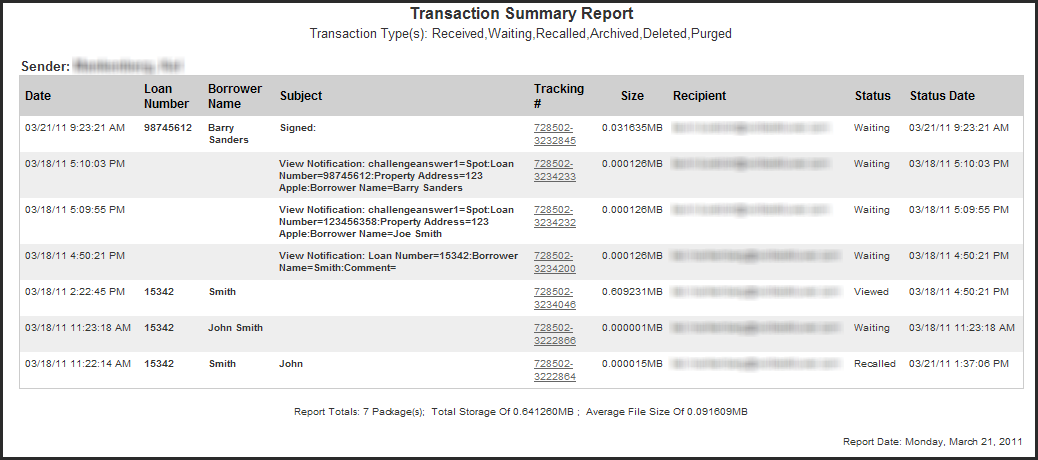
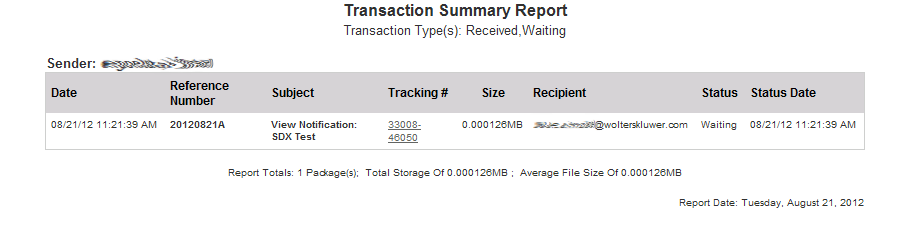
The Transaction Summary Report includes the following columns:- Date — The date on which the message and/or attachment was sent.
- Loan Number — The applicable loan number, if referenced in the message.
- Reference Number — The applicable reference number, if referenced in the message.
- Borrower Name — The name of the borrower for the reported transaction.
- Subject — The subject line of the message.
- Tracking # — Use the tracking number link for an individual message to open or view its content.
- Size — The total size of the message and/or attachments. The size is determined by totaling the size of all attachments and the message body.
- Recipient — The e-mail address of the recipient(s) of the message and/or attachment.
- Status — The status of the message and/or attachment.
- Status Date — The date on which the current status change occurred.