To forward a package you sent previously:
-
Click Sent Items on the navigation menu.
-
Select the messages you want to forward.
Note:
You must be granted Forward permissions to use this feature.
- To select a single message, select its check box.
- To cancel the selection of a message, clear its check box.
- To select or cancel the selection of all messages, click the check mark icon (
 ).
).
-
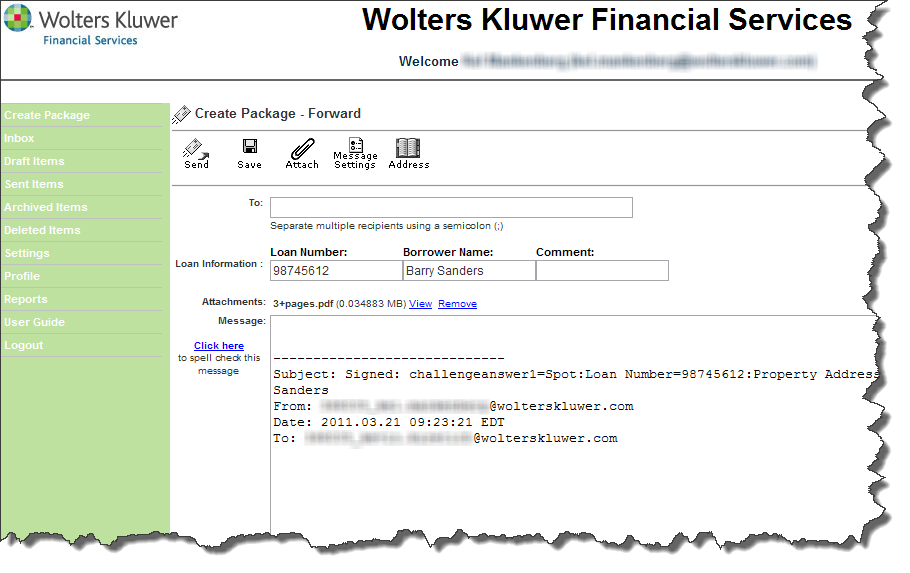
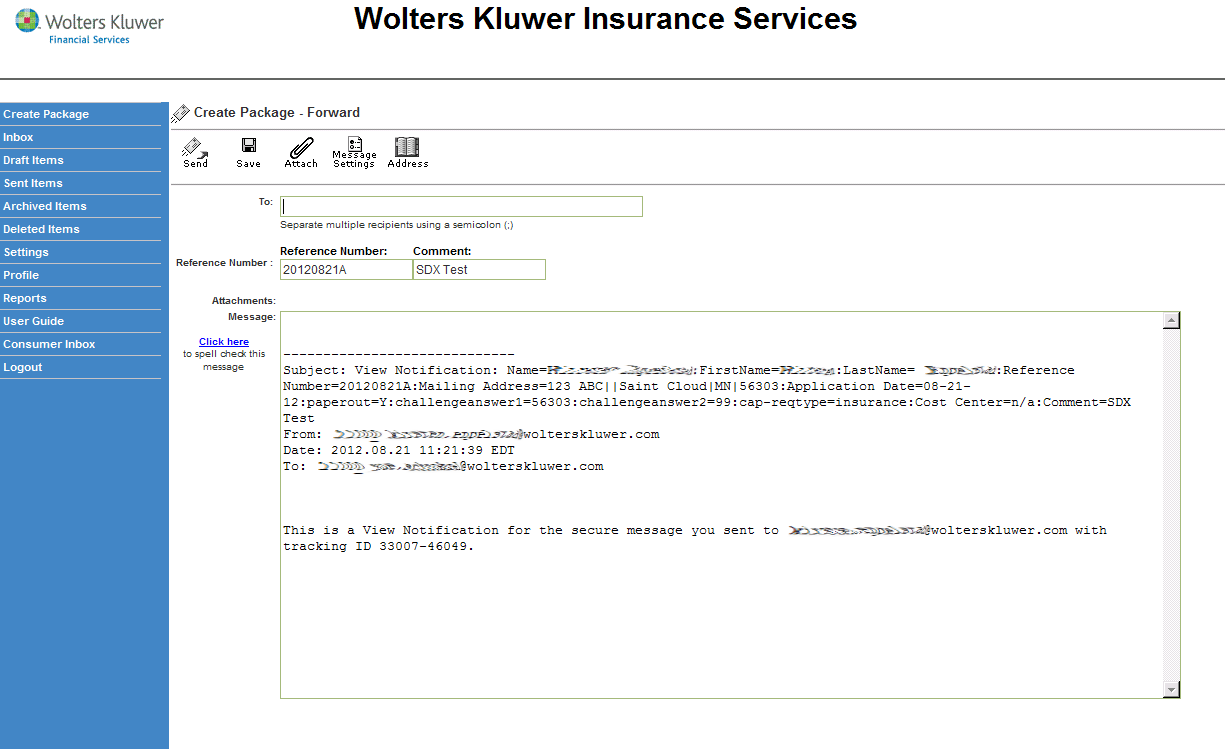
Click the Forward button. The Create Package - Forward form
appears.
-
Enter the recipient e-mail address in the To field. You can also click
Address, select a recipient from your personal address book, and
click Sent To to populate the To field.
Note:
- To change or add to the Subject or Message, click in
the appropriate field and modify the text or enter additional
information.
- To add an attachment, click the Attach button. Select the
file to attach and click Open. The attached files appear in
the Attachments section. You can View or Remove
attachments as needed.
-
Click the Send button to forward the message. The message now appears in
your Sent Items folder.