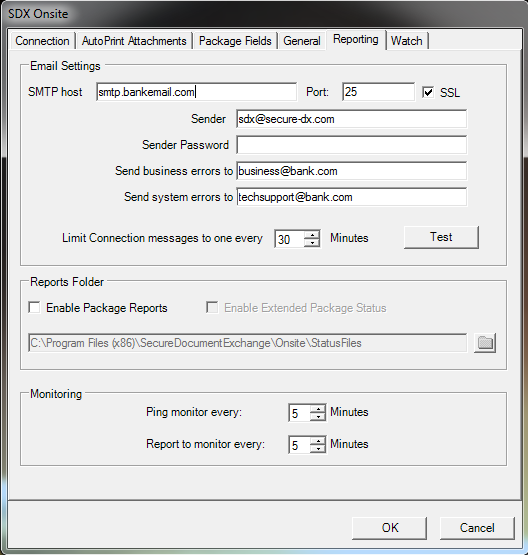
The following table describes the features of the Reporting tab.
| Feature | Description |
|---|---|
| Email Settings | |
| SMTP host | Allows you to enter the host name or address of the SMTP server used to send error emails |
| Port | The port is configurable, but is typically set to 25 (standard port for SMTP). |
| Sender | Allows you to specify the email account that sends business and system error information. |
| Sender Password | Allows you to enter the sender’s email password for SMTP server authentication. |
| Send business errors to: | SDX-Onsite sends routing errors to the sender's email address specified in the package and any additional emails specified here. Email addresses must be separated by a semicolon (;). |
| Send system errors to: | SDX-Onsite sends system errors to the email address specified here. |
| Test | Clicking this button verifies the previous settings. |
| Limit Connection messages to one every ___ Minutes | Helps prevent overloading of email messages in the event of a connectivity problem (which would trigger many repeating alert messages). It defaults to 30 minutes and can be changed if desired. |
| Reports Folder | |
| Enable Package Reports | If checked, SDX-Onsite saves a status
file for each package sent, saved or viewed. Enter the folder that will be used for
holding report and status files. SDX generates usage reports and also status of
packages i.e. Sent and Opened. Note: It is essential that the Windows user account
that the SDX Service is running under has write access to this Reports Folder
directory.
|
| Enable Extended Package Status |
Select Enable Extended Package Status to call the web service method getExtendedPackageStatus rather than getPackageStatus. The getExtendedPackageStatus web service call returns much more information about a package. |
| Monitoring | |
| Ping monitor every ___ Minutes | Indicates the interval that the SDX Service will Ping the SDX Server. |
| Report to monitor every ___ Minutes | Indicates the interval that an email alert is sent if a ping fails. SDX Service and package status stats are also collected at intervals specified in the Report to monitor setting. |