-
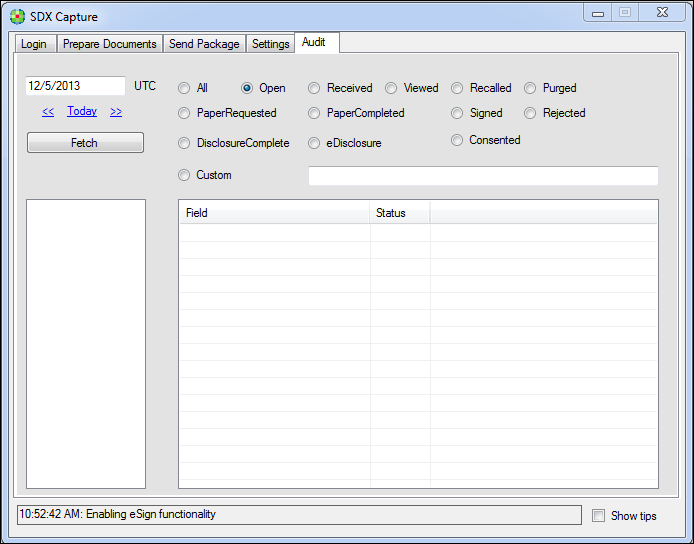
Click the Audit tab to view the recipients, dates, reference numbers,
and IDs of sent document packages.
Tip: If Show Tips in the bottom right corner is enabled and you hover over a field name, a description is displayed. Note that Tips function properly when Capture is installed on Windows 7 or 10 computers; however, Tips are not compatible with Windows XP computers. -
Click on the Today link to populate the current date in the box before
clicking the Fetch button. Click the previous (<<) or next
(>>) links to decrease or increase the date respectively before
clicking Fetch.
Note: To view document packages that you sent on previous dates, either type the desired date into the date box or click << or >> until you reach the date you want. Then click Fetch. SDX Capture displays the IDs of all document packages you sent from that date to the current date.
-
The options located at the top right of the window allows you to filter the
packages returned after clicking Fetch.
The following table describes the filter options.Note: Packages displayed after using a filter reflect only those found for the date specified in Step 2.
Feature Description All Displays all packages sent using the current login credentials Open Displays only packages that have a status of Received or Waiting Received Displays only packages that have been received but not viewed Viewed Displays only packages that have been viewed Recalled Displays only packages that have been recalled Purged Displays only packages that have been purged PaperRequested Displays only packages where the recipient has requested a paper copy PaperCompleted Displays only packages where the package has been printed by the Print House Signed Displays only packages that have been signed Rejected Displays only packages that have been rejected DisclosureComplete Displays only packages that have a status of Consented or PaperCompleted eDisclosure Displays only packages that have a status of Signed, Rejected, Consented, Paper Requested, Paper Direct or Paper Completed Consented Displays only packages that have been consented Custom Allows you to define a custom filter (for example, OPEN:VIEWED:CONSENTED) - Select the ID number of the document package you want to view.
- To return to the current date, click Today.