This article covers the following subjects pertaining to creating and running a webhelp transform in Oxygen:
- Installing the webhelp transformation
- Configuring the webhelp transformation in Oxygen
Installing the webhelp transformation
The com.oxygenxml.webhelp.zip file contains almost all customizations to WKFS webhelp transformations.
Installation instructions:
- Copy the com.oxygenxml.webhelp.zip file (currently located in TFS at $/FS.InfoDev/Dev/oxygen/webhelp transformation files) to the DITA-OT plugins folder in your oxygen installation; (ex. C:\Program Files\Oxygen XML Editor 15\frameworks\dita\DITA-OT\plugins)
- Extract the zip file in to the current location (i.e. Extract Here)
- If prompted to overwrite existing files, accept the process. This will overwrite all necessary files.
Successfully placing these files in the proper location will result in the correct formatting for the WKFS webhelp transformations, including fonts, colors, logos, bullet points, etc.
Configuring the webhelp transformation in Oxygen
Upon installing the .zip file, perform the following:
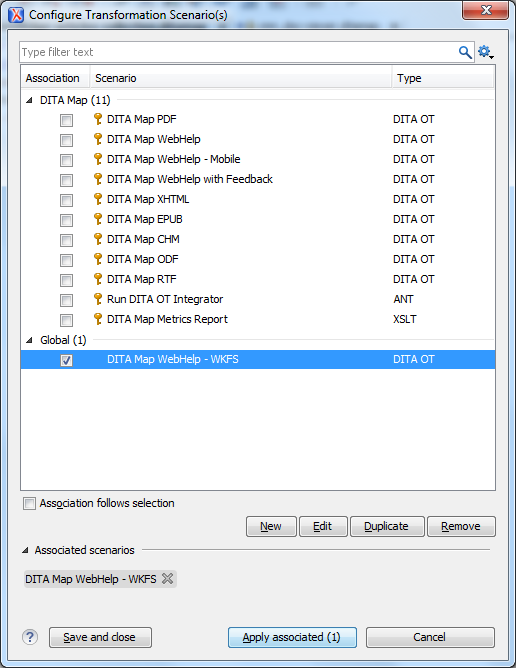
- Click the Configure Transformation Scenarios button (or select DITA Maps/Configure Transformation Scenarios) to display the corresponding dialog.
- Click the checkbox next to DITA Map Webhelp - WKFS to select the webhelp transformation.
- Click the Edit button.
- Click the Output tab.
- In the Output Folder field, enter the directory location to place the webhelp files. For example: C:/dev/out/FulfillmentManager/webhelp. NOTE: You must change the Output field when creating webhelp transforms for different products. For example, if creating a DocOne webhelp transform, change the Output field to: C:/dev/out/DocOne/webhelp.
- Click OK.
- Click Apply Associated.