There may be times when you need to create a link from your online documentation to another document or file on our web server or the web in general. This is helpful if, for example, you need to refer to an archived PDF file.
To create a reference to a web file, use DITA's xref element.
- Within oXygen, place the cursor where you wish the link to be.
Note: an xref can be placed nearly anywhere in a DITA document. - From the menu bar, select DITA > Link > Web Link. The Input URL dialog is displayed.
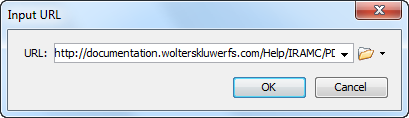
- In the URL field, type the URL to the desired file (ex. http://documentation.wolterskluwerfs.com/Help/IRAMC/PDF/IRAMC User Guide.pdf) and press OK.
The link is inserted within the current DITA file.
Notice in the above example that the URL is inserted within the xref element, but the actual text that the user will click is not inserted. - Enter the text the user is intended to click within the actual xref tags (highlighted above).

 Tip
Tip
If the text to be clicked is already within the DITA document, you can simply highlight the text and then select DITA > Link > Web Link. This automatically surrounds the selected text with the xref tags.

