This procedure is intended to guide you through creating a Ditaval file manually using oXygen. To create a ditaval using the DITAVAL Wizard within InfoDev DITA Tools, refer to Creating a DITAVAL using InfoDev DITA Tools.
To learn more about DITAVALs, refer to DITAVALs.
Step-by-step guide
To create a ditaval using oXygen:
- Within oXygen, from the File menu, select New.
The New dialog is displayed. - Expand Framework templates > DITAVAL and select Filter.
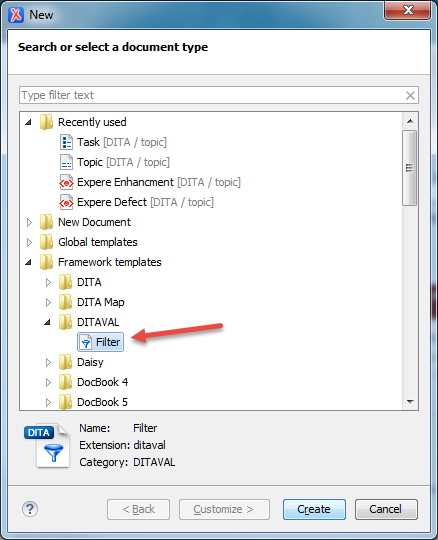
- Click Create.
oXygen creates a new document session populated with default attributes and values.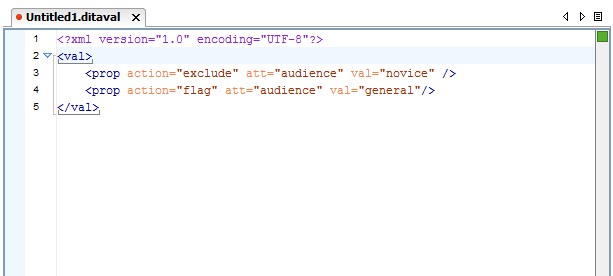
Modify the attributes and values according to your current filtering needs.
Note
For more information on the concept of a ditaval file and its attributes and values, refer to DITAVALs
When finished creating your ditaval, store it in the TFS location of $/FS.InfoDev/Dev. This ensures that others can make use of all created ditavals without having to create a new one.
Important
For assistance on how to name your ditval, refer to DITAVAL Naming Conventions.

