This section explains how to change your "tags display" when working on topics in oXygen. The Tags Display mode sets the default display mode for element and attribute tags presented in Author mode. You can change the "tags display" through either the Options menu or on the oXygen toolbar. See Setting your Tags Display below for more information.
You can choose between the following options:
- Full Tags with Attributes - All XML tags are shown, with attribute names and values;
- Full Tags - All XML tags are shown, but without attributes; *recommended
- Block Tags - The XML tags that enclose block elements are shown in full. Compact tags (no element names) are shown for inline elements;
- Inline Tags - The XML tags that enclose inline elements are shown in full. Block tabs are not shown;
- Partial Tags - Partial tags (no names) are shown for all elements;
- No Tags - No tags are displayed. This representation is as close as possible to a word-processor view; *default
Setting the Tags Display in the Options menu
- Open the Options menu and select Preferences.
- Select Editor, then Author in the left navigation panel.
- In the Tags section/Tags display mode, select an option; a recommended type is Full Tags.
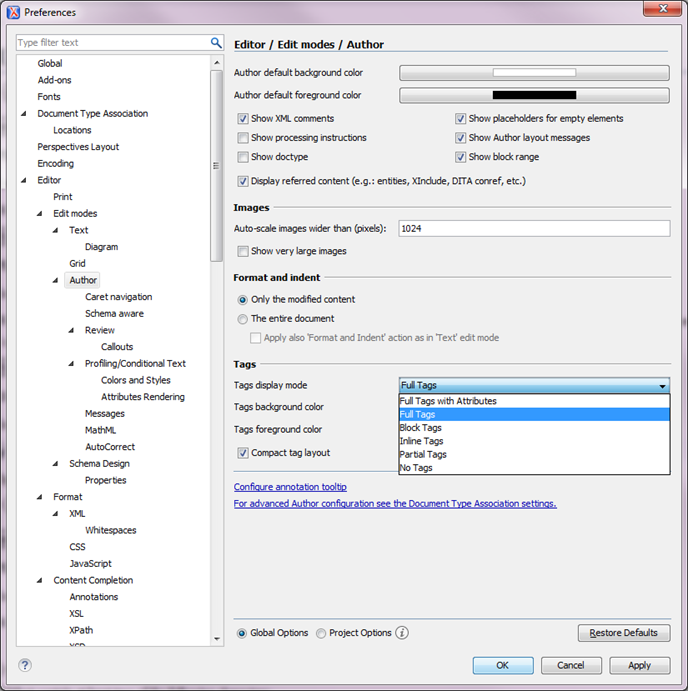
Setting the Tags Display on the oXygen toolbar
- Locate the Tags Display Mode toolbar on the left side of the screen (see example below).
- Click the dropdown arrow and scroll to your preferred option; a recommended type is Full Tags.
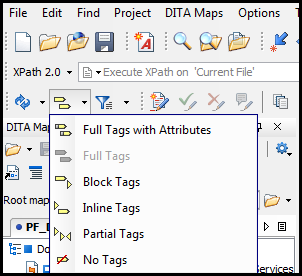
NOTE: Using the toolbar option only applies to that particular topic when opened. Closing that topic or opening a new topic defaults to the No Tags option.
Related
The Tags background color allows you to configure the Author tags background color; the Tags foreground color allows you to configure the Author tags foreground color;
You can change your tags background and foreground colors by clicking each option and selecting a color.

