DITA Best Practices : Transforming an Oxygen webhelp system into a compiled HTML help (CHM) system
Created by Rosalind Nelson on Dec 29, 2016
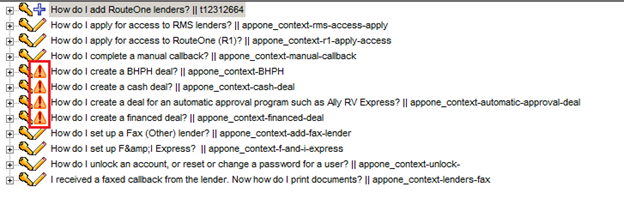
- In Vasont, check in all files and check for exclamation mark icons. Check any topics with exclamation mark icons and resolve issues with references or other problems.
- Delete the contents of your Extract folder.
- In Vasont, extract the project map file (highlight the map, right-click, and select Extract). This will extract your map and associated files.
- Copy your project files (map, concepts, tasks, and screencaps) from your Extract directory to a location on your PC.
- Download and install HTML Help Workshop from Microsoft on your PC.
- Open Oxygen on your local PC.
- Open the project map.
- Transform the map using the Webhelp scenario. This is a check to make sure all the links and files are correct in the webhelp system.
- Create a scenario to transform the help system into a CHM help system.
- Click the Configure Transformation Scenario (wrench) icon.
- Under DITA Map, select DITA Map CHM.
- Click Edit.
- In the Warning message, click Yes to duplicate the scenario.
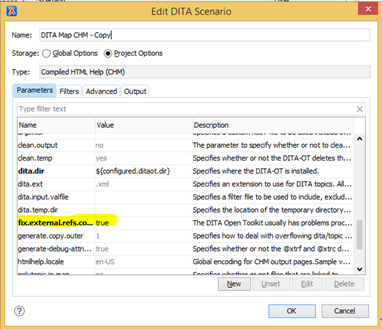
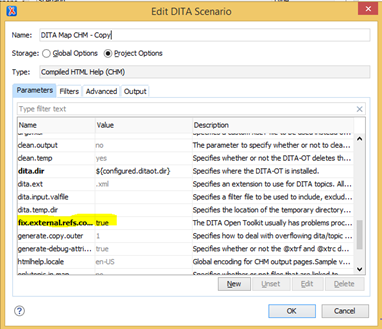
- In the Parameters tab, select fix.external.refs.com.oxygenxml.
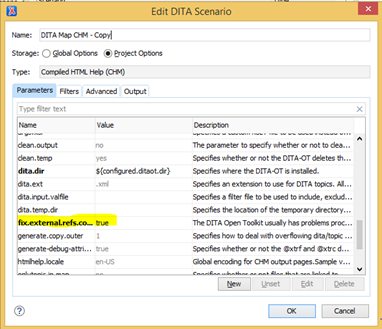
- Click Edit.
- From the Value list, select true
- Click OK.
- In the Configure Transformation Scenario dialog, select the edited CHM transformation scenario.
- Click Apply Associated.
 image2016-12-29_17-59-22.png (image/png)