Accepting and Rejecting Changes
To accept or reject changes within the Outline Editor and Field Grid tabs,
it is helpful to have all three versions displayed. The following example shows the
Reconciled, Incoming and Existing versions in a side-by-side layout.
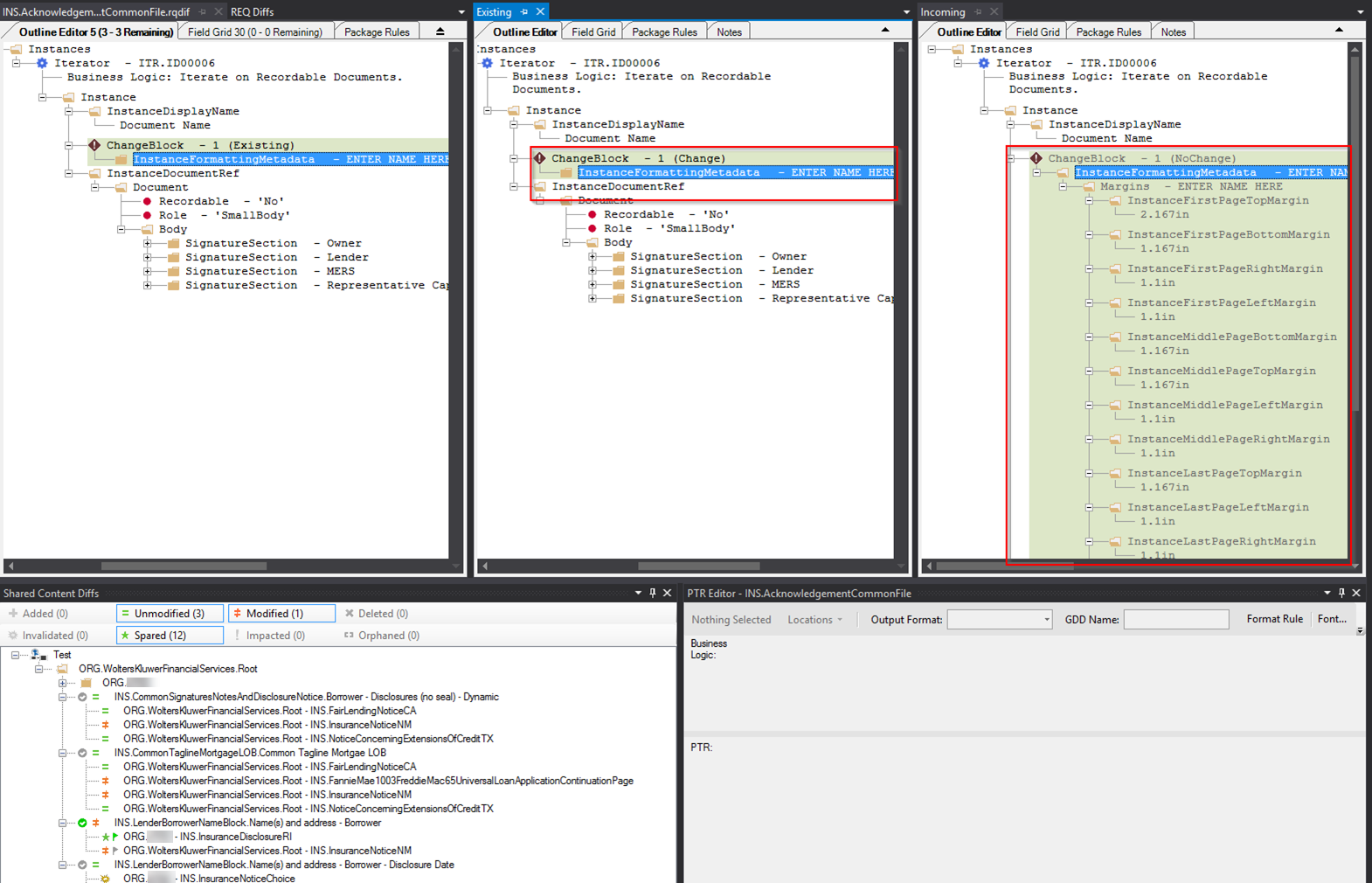
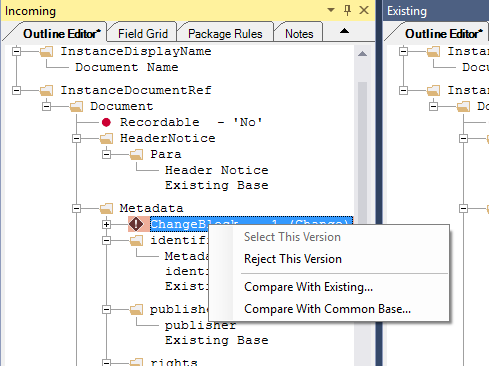
The features built into Merge functionality allows you to select whichever versions of the selected change you wish. This is done by right-clicking the Incoming or Existing instance of the change and selecting Select This Version or Reject This Version. When selecting a version from the Existing or Incoming windows, the associated ChangeBlock in the RQDIF window displays the result of your selection (see table below).
Note that when a version is selected, the Select This Version option is disabled
and the Reject This Version option is enabled, allowing you the change your
selection.
The following table describes the possible options for
selections in the Incoming and Existing versions, and their impact on the Reconciled
version.
When finished selecting the versions to include, right-click the Reconciled
version and select Mark As Resolved. This disables all selection options from the
Existing and Incoming versions.
| Existing Version | Incoming Version | Reconciled Version |
|---|---|---|
| No selection | No selection | Takes the CommonBase version |
| Select This Version | Select This version | Takes both versions |
| Reject This Version | Reject This Version | Accepts the default action. If an automatic change, it automatically takes the existing or incoming, based on the instance. If a conflict, it defaults to the existing version. |
| Select This Version | Reject this Version | Takes existing version |
| Reject This Version | Select This Version | Takes incoming version |
Note: If you need to change your
selections after you have marked the Reconciled as resolved, you can right-click the
Reconciled version and select Mark As Pending. This makes all versions
selectable.