Uploading Attachments
Uploading Attachments and Applying Categories During the Upload
- To upload an attachment to a transaction, a user must be assigned the Upload Attachments permission in Security Administration.
- If the upload operation is cancelled while in progress, all files will be discarded.
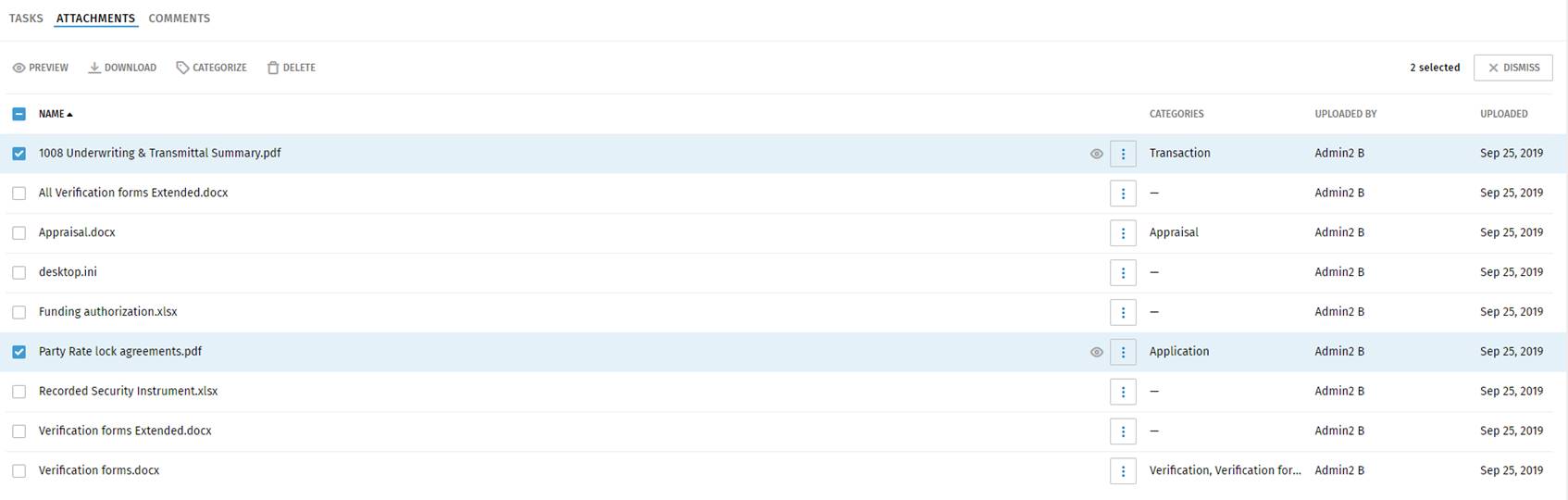
- Uploaded attachments display on the Attachments grid on the Transaction
Summary.
Uploading Attachments and Applying Categories During the Upload
- To upload an attachment to a transaction, a user must be assigned the Upload Attachments permission in Security Administration.
- If the upload operation is cancelled while in progress, all files will be discarded.
- Uploaded attachments display on the Attachments grid on the Transaction
Summary.
- Select
 on
the Attachments grid.
on
the Attachments grid. - Locate and select the files to upload. Note: The Uploading attachments message displays with a status for each uploaded document. 'In progress' indicates the file is being processed (i.e. being uploaded). 'In queue' means the file is waiting on other tasks to complete before the file is uploaded.
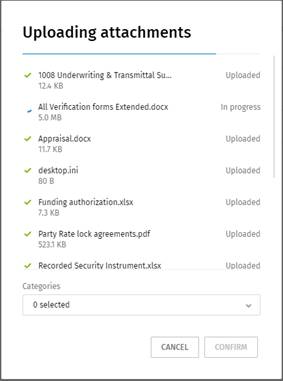
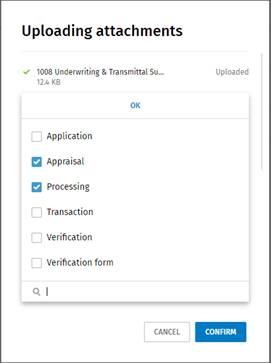
- Apply a category to the attachments if applicable. Select the down arrow
under Categories. Select the categories to apply to the documents and select
OK. Note: To categorize attachments, a user must be assigned the Categorize Attachments permission in Security Administration.
- After all the attachment have been uploaded, and categories have been
applies, select
 Confirm to confirm the upload.
Applying Categories to Attachments after Uploading
To categorize a single attachment
- On the Attachments grid, select
 next
to a transaction and select Categorize.
next
to a transaction and select Categorize. - Select one or more categories.
- Select Save to confirm the selection.
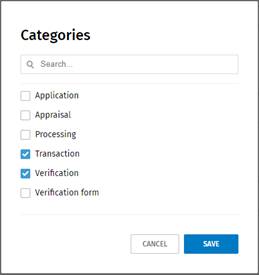 Note: Categories will be applied to the selected attachment and shown in the Categories column of the‘Attachments grid.
To categorize multiple attachments
- On the Attachments grid, select the check boxes to the left of the
attachments to categorize.
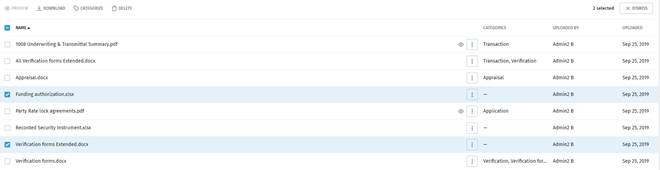
- Select
 at the top of the Attachments grid.
 - Select one or more categories.
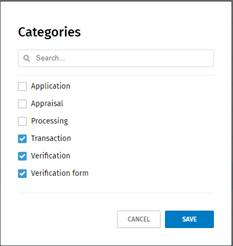
- Select Save to confirm the selection.
Note: Categories will be applied to the selected attachments and shown in the
Categories column of the Attachments grid.
Note: To find attachments, use the Search function. Enter a minimum of three
characters in the Search box  to quickly find an attachment. Attachments can
be filtered by searching for the name of the file, the name of a person who
uploaded it, or the category.
to quickly find an attachment. Attachments can
be filtered by searching for the name of the file, the name of a person who
uploaded it, or the category.
to quickly find an attachment. Attachments can
be filtered by searching for the name of the file, the name of a person who
uploaded it, or the category.