You can access the System Settings by hovering over the menu button and clicking System
Setup from the System group.
Note: You will not see System Settings as a menu
choice if you are running TSoftPlus in a hosted environment.
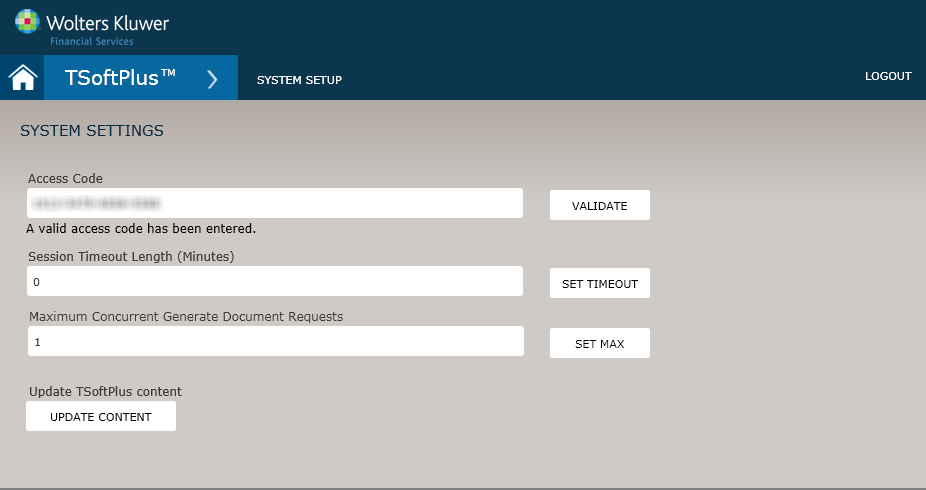
The System Settings
page is displayed.The following table describes the features of the System Settings Screen.
| Feature | Description |
|---|---|
| Access Code | Enter the Access code provided to you. The Access code provides access to specific documents, based on the features your organization purchased. Click VALIDATE after your code is entered. |
| Session Timeout Length | A user's session can be configured to end after a certain amount of inactive
time has been reached. Enter the number of minutes in the field provided and click
SET TIMEOUT. A default setting of 0 (zero) indicates no session timeout.
Once the session has ended, the user receives a message and is returned to the login
screen. The system performs a save operation before a session timeout. Information
entered on the workflow pages for a transaction is saved automatically. The system
does not automatically save changes to party records. Note: An automatic timeout of
30 minutes is used for hosted environments and is not
user-configurable.
|
| Maximum Concurrent Generate Document Requests | A configurable maximum concurrent generate document requests (number of PDF document creation requests that can process concurrently in the queue). Depending upon hardware configuration, some systems may be able to support more than one concurrent request. The default setting is 1, indicating only one request for generating PDF documents (using the CREATE DOCUMENTS button) is processed in the queue at a single time. Click SET MAX after editing the number of requests. |
| Update TSoftPlus content | Allows you to update the TSoftPlus content. Click UPATE CONTENT to initiate the update. |