The Data Entry Drawer, located on the left side of the screen, organizes all data fields
available on the current document in a list view with expanders that
organize the information. Click the gray area of any expander to display or hide the data
items. Click the DATA ENTRY tab to display the Data Entry Drawer and click again
to hide it.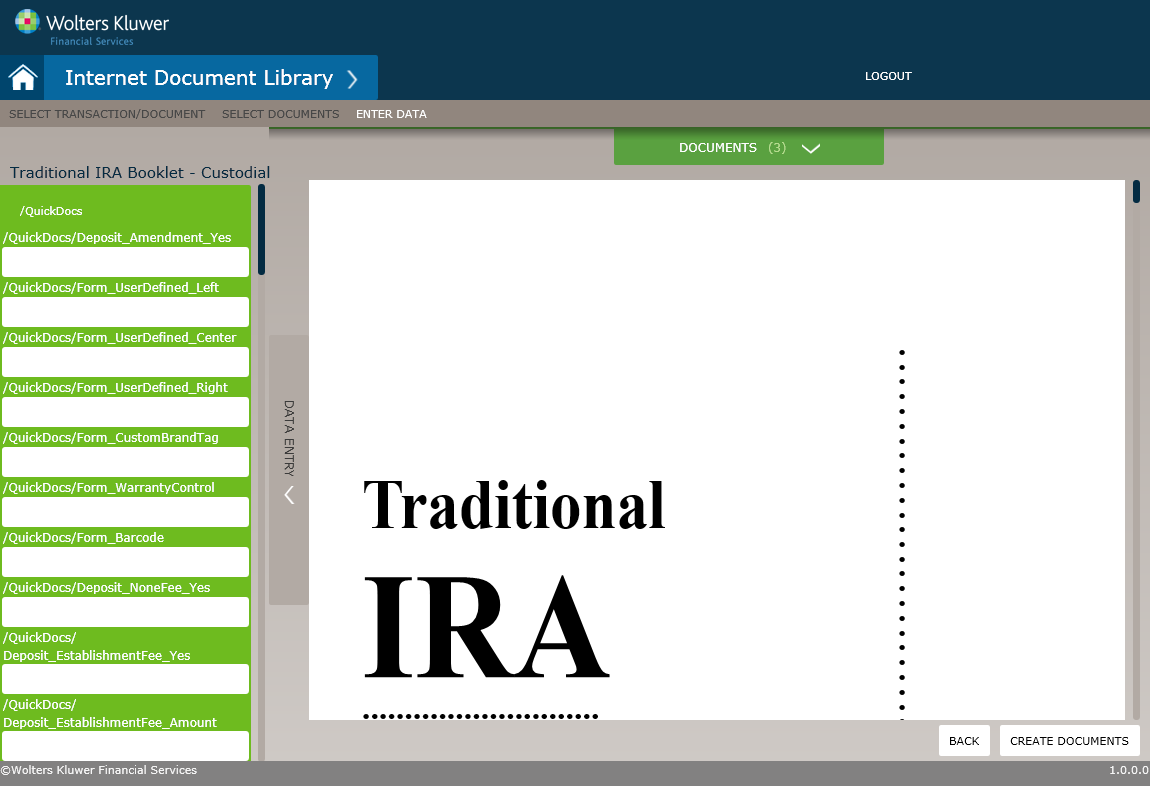
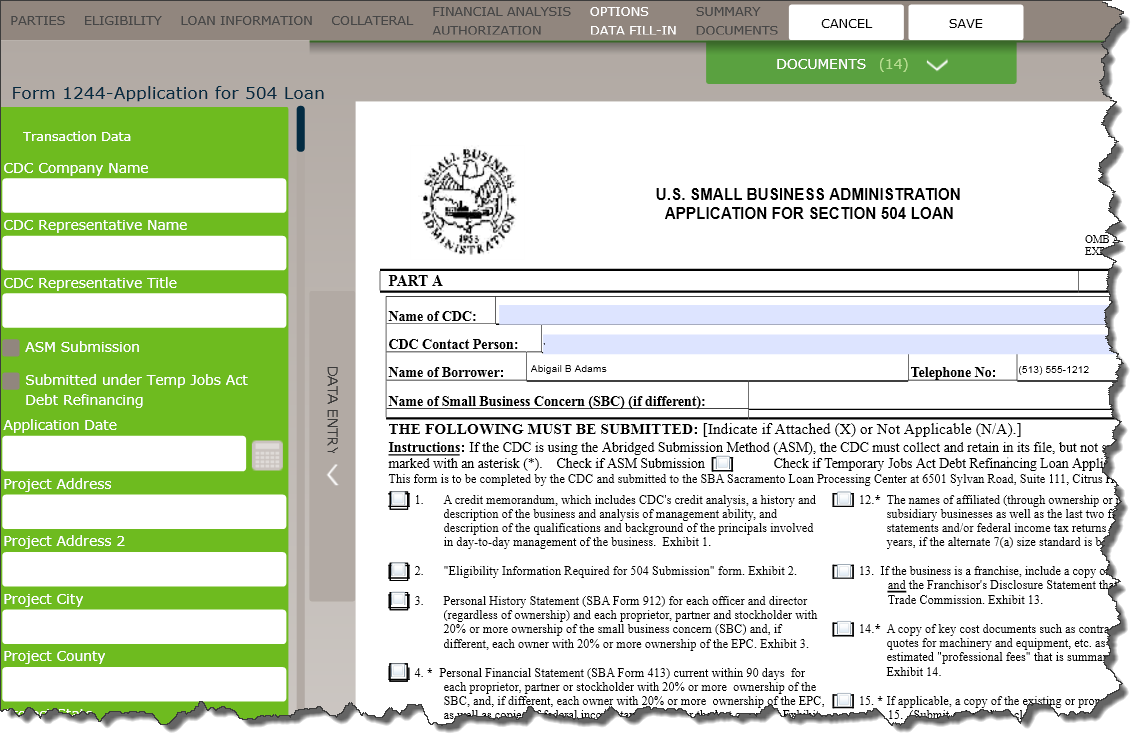
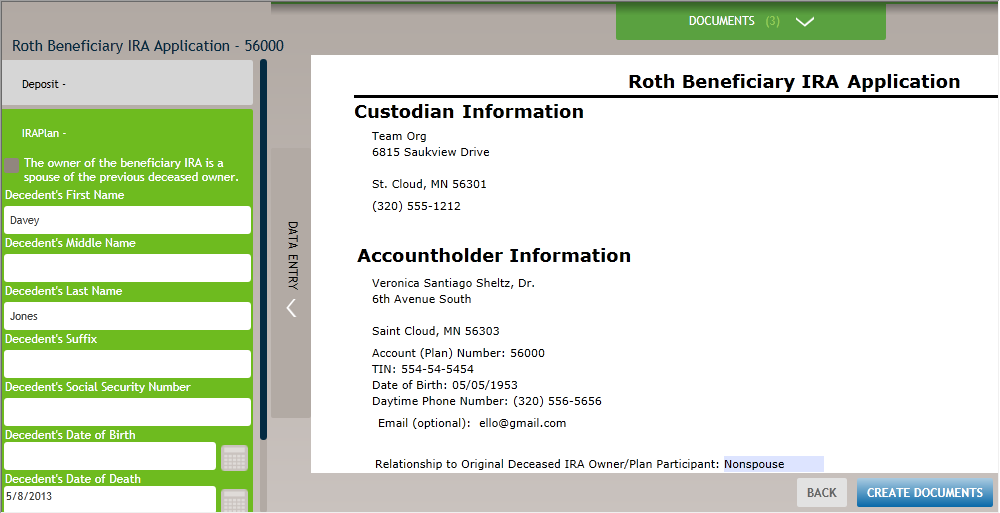
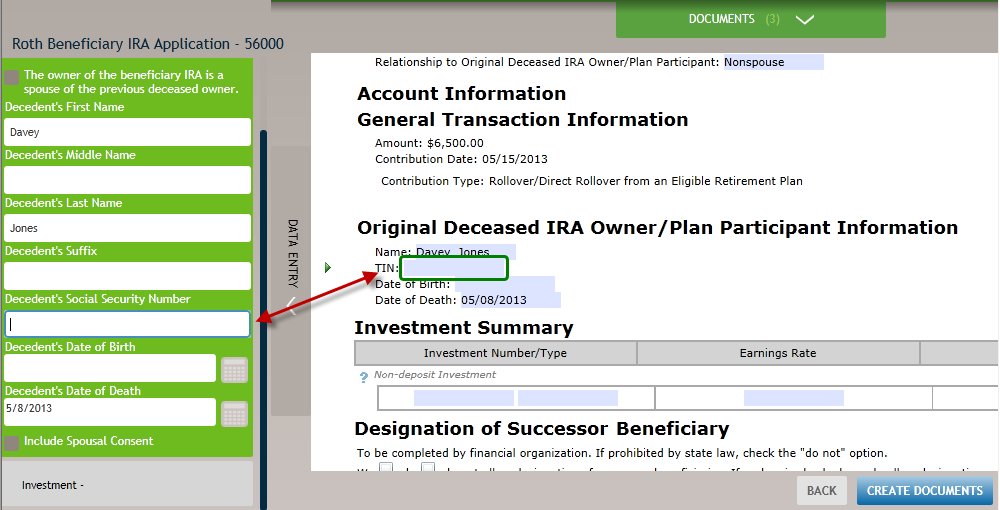
This feature allows you to enter data into the document using the data entry view. When you
click in a field in the Data Entry Drawer, the field is highlighted with a blue border and the
corresponding field in the document form is highlighted with a green border.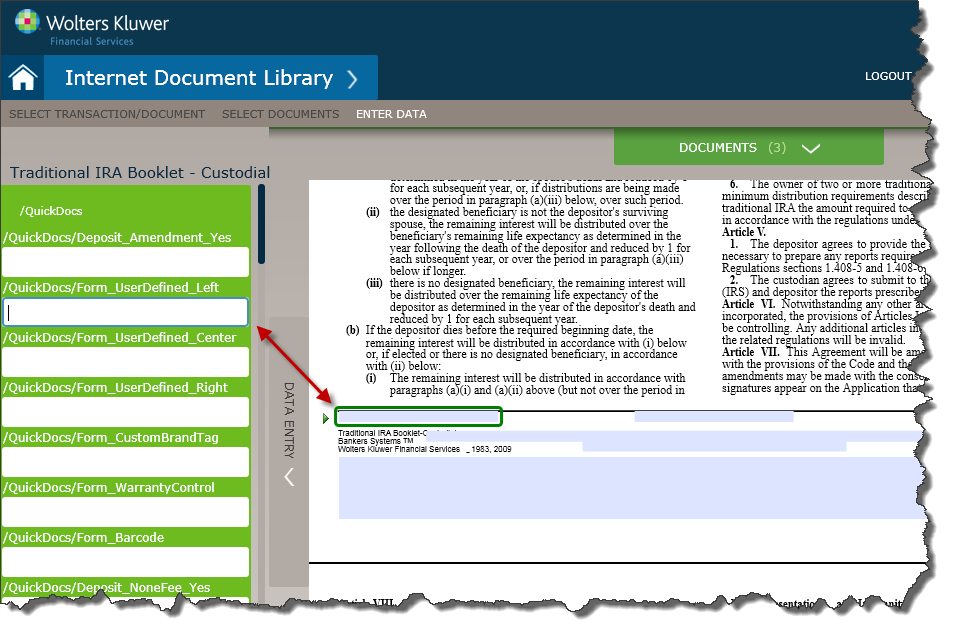
Click CREATE DOCUMENTS located at the bottom right of the screen to produce a PDF containing all selected documents.