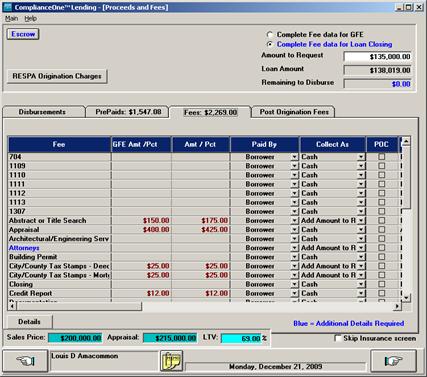
1. Select the Complete Fee data for Loan Closing option on the Proceeds and Fees window.
2. Enter the fee amounts in the Amt/Pct column in on the Fees tab.
3. Click the Details button to edit the HUD fee details and the service provider for each fee. The service provider type determines where the fee prints in the Comparison table on page 3 of the HUD.
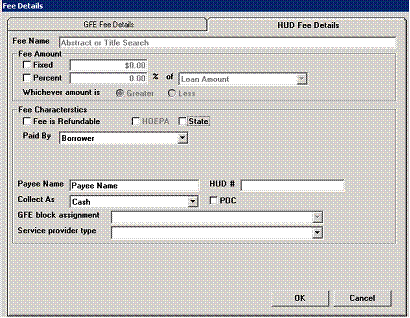
n When you select the Complete fee data for loan closing option, you cannot make changes to GFE amounts in Fee Details or in the fee grid. You must choose the Complete Fee Data for GFE option to make any changes to the GFE Amt/Pct. If you make changes to GFE Amounts, you need to revisit the RESPA GFE window and select the Update from Transaction option. Failure to do so could result in inaccurate amounts printing on the GFE and/or HUD.
n The RESPA GFE window is only available when the Complete fee data for GFE option is selected and you move forward through Calculations.
4. Review the information on the GFE-HUD Comparison window.
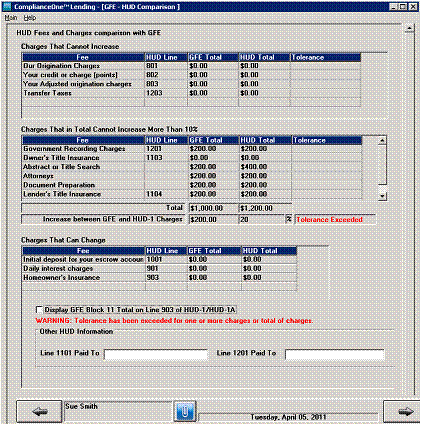
n The GFE-HUD Comparison window appears in Calculations on the Loan side only. You must choose the Complete Fee data for Loan Closing option to display the window.
n The GFE-HUD Comparison provides information for the regulations regarding the amount that fees can change from the GFE to closing. The window shows all the fees and the tolerance (Cannot Increase, Cannot Increase by More Than 10%, and Can Change). Fees appear in the applicable tolerance area based on the Service Provider Selection selected for the fee. If tolerances are exceeded, red Warning message displays. The information on this window prints on page 3 of the HUD.
Information for page 1 of the HUD is entered in Data Entry when preparing documents. Some data entry fields appear based on the data entered in the transaction.
You must use the Calculate Totals button to update the calculations for the HUD. For correct calculations for the HUD, you must recalculate anytime you make a change to your transaction.
n Mortgage Insurance Case number: FHA loans only
n Adjustments for items paid by seller in advance: Amounts paid in advance and for which the Borrower must reimburse the Seller (City/Town Taxes, County Taxes, Assessments, Flood and Hazard Insurance Premiums for a Substitution, Mortgage Insurance in an Assumption, Fuel Purchase by the Seller, etc.)
n Settlement Charges: Completes the Total Real Estate Broker Fees in the 700 Series of page 2.
n Title Charges: Completes the title policy information on lines 1105-1108 on page 2.
n Lender’s Title Policy Limit: Enter the loan amount.
n Owner’s Title Policy Limit: Enter the sales price.
n Mortgage Include: Completes a portion of the loan terms on page 3.
n Loan Terms: Enter appropriate information.
n Separate Addendum: Adds language to “See attached for additional parties and/or fees. *See supplement.”
n Signatures: Checks the box “Refer to attached Signature Addendum for additional parties and signatures, and prints the Settlement Agent’s name in the signature line.