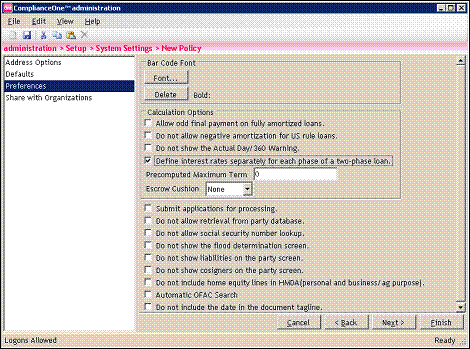
1. Select System Settings on the Setup tab in administration.
2. Open an existing policy or create a new policy.
3. Complete the information for the policy. In the Preferences section, select the Define interest rates separately for each phase of a two-phase loan option.
4. Begin a loan and complete Party Information.
5. In Policy Selection, verify the policy set up for two-phase loans is selected is selected in the System Setting Policy drop-down list.
6. On the Loan Definition window:
n Select the Construction of Building option.
n Select the with Permanent Financing option.
n If applicable, enter information for the architect by clicking the Architect button. This information prints on the Construction Loan Agreement and the Architects Consent and Acknowledgement.
n Select theRenovation/Improvement of Dwelling or Purchase Dwelling option to trigger HMDA if applicable.
n Click the Use of Proceeds button and select the Real Estate Construction option.
n Select Fixed Rate or Variable Rate for the first phase. If variable, select a variable rate product from the drop-down list.
n Select Fixed Rate or Variable Rate for the second phase. If variable, select a variable rate product.
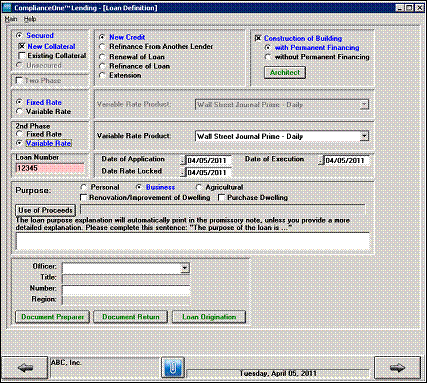
n A two-phase construction loan is considered a construction with permanent financing loan.
n Construction loans with permanent financing are always a two phase loan, so do not check the Two Phase checkbox.
7. On the Loan Definition 2 window:
n Verify the Line of Credit option is checked.
n Verify the Closed Credit option is checked.
8. On the Regulation Compliance Information window, verify the Secured by Dwelling Being Constructed option is checked.
9. In Calculations, verify Construction to Permanent Financing displays at the top. Complete the first window in Calculations. Click the Forward Arrow button.
10. Complete the Proceeds and Fees section.
11. If one of the phases is variable rate. select VR Edit from the VR Options menu and complete the information. If both the phases are variable rate, complete the information for VR Edit 1 (first phase) and VR Edit 2 (second phase).
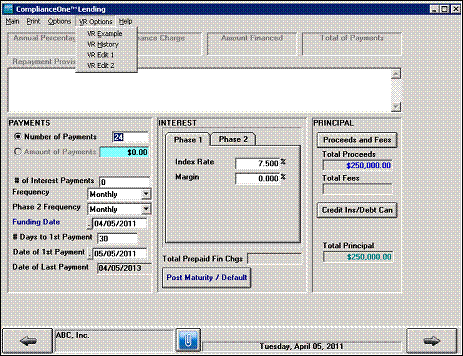
12. Complete the Payments section.
n Enter the number of payment for the second phase in the Number of Payments field.
n Enter the number of payments for the first phase (construction) in the # of Interest Payments field.
13. Complete the Phase 1 tab.
14. Select the Phase 2 tab and complete the information.
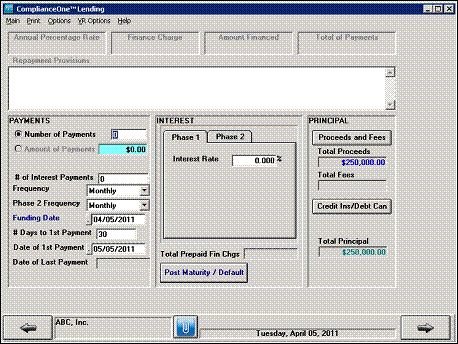
15. Complete the remaining calculation information.
16. Prepare and print the documents.