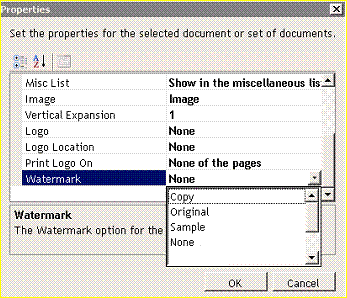
1. Select Document Properties on the Lending or Deposit tab in administration.
2. Open the document policy.
3. Select Set Properties for Static or Set Properties for Dynamic.
4. Select the document(s).
n While pressing the Ctrl key, select multiple separate documents.
n While pressing the Shift key, select the first document and last document for a continuous set of documents.
5. Click the Properties button.
6. Select Watermark in the table.
7. Select None and select a watermark from the drop-down list. Click OK.
8. Click the Finish button.
9. Publish your changes. Refer to the How do I publish? topic for instructions on publishing.
Adding watermarks is a two-step process. Create the watermark on the setup tab in administration. Then, attach the watermark to each applicable form in Document Properties on the Lending or Deposit tab.