1. Select Document Properties on the Lending tab in administration.
2. Open the document policy.
3. Select Set Properties for Dynamic.
4. Select the document(s).
n While pressing the Ctrl key, select multiple separate documents.
n While pressing the Shift key, select the first document and last document for a continuous set of documents.
5. Click the Properties button.
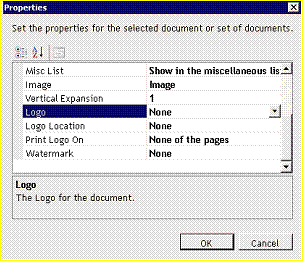
6. Complete all three options below.
n Select a logo from the Logo drop-down list.
n Select a location from the Logo Location drop-down list.
n Select the pages where the logo should print from the Print Logo On drop-down list.
7. Click OK.
8. Click the Finish button.
9. Publish your changes. Refer to the How do I publish? topic for instructions on publishing.
n A logo is only available for dynamic documents.
n Adding a logo is a two-step process. Set up the logo on the Setup tab in administration. Then attach the logo to each applicable form in Document Properties.